The desktop apps I use every day as a full-stack developer.
As a full-stack web developer, I spend most of my working day switching between code editors, browsers, terminals, databases, design tools, and a few apps that make everything less painful. Over the years, I've tried plenty of software, but only a handful have earned a permanent place in my workflow.
I'm sharing the desktop applications I actually use, why I chose them, how they fit into my daily workflow, and what keeps me coming back to them. Some are popular developer tools, some are small macOS utilities, and a few might make you question my professional qualifications.
Everything here is about software. No desk setups, keyboards, monitors, or hardware recommendations. Just the digital side of my working life as a Web Application Engineer.
I've arranged the main apps roughly from most-used to least-used. Let's get into it.
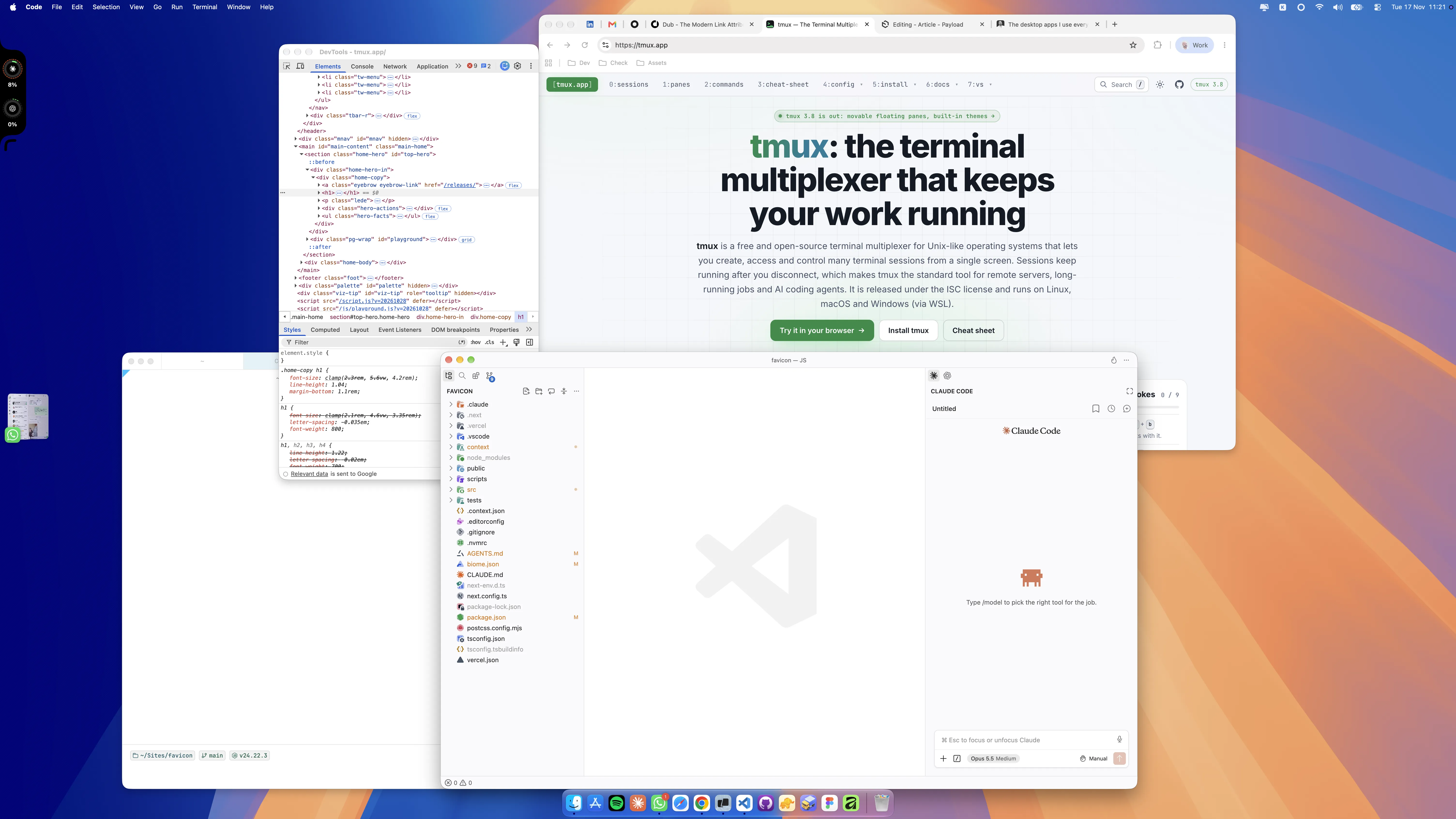
1. Google Chrome
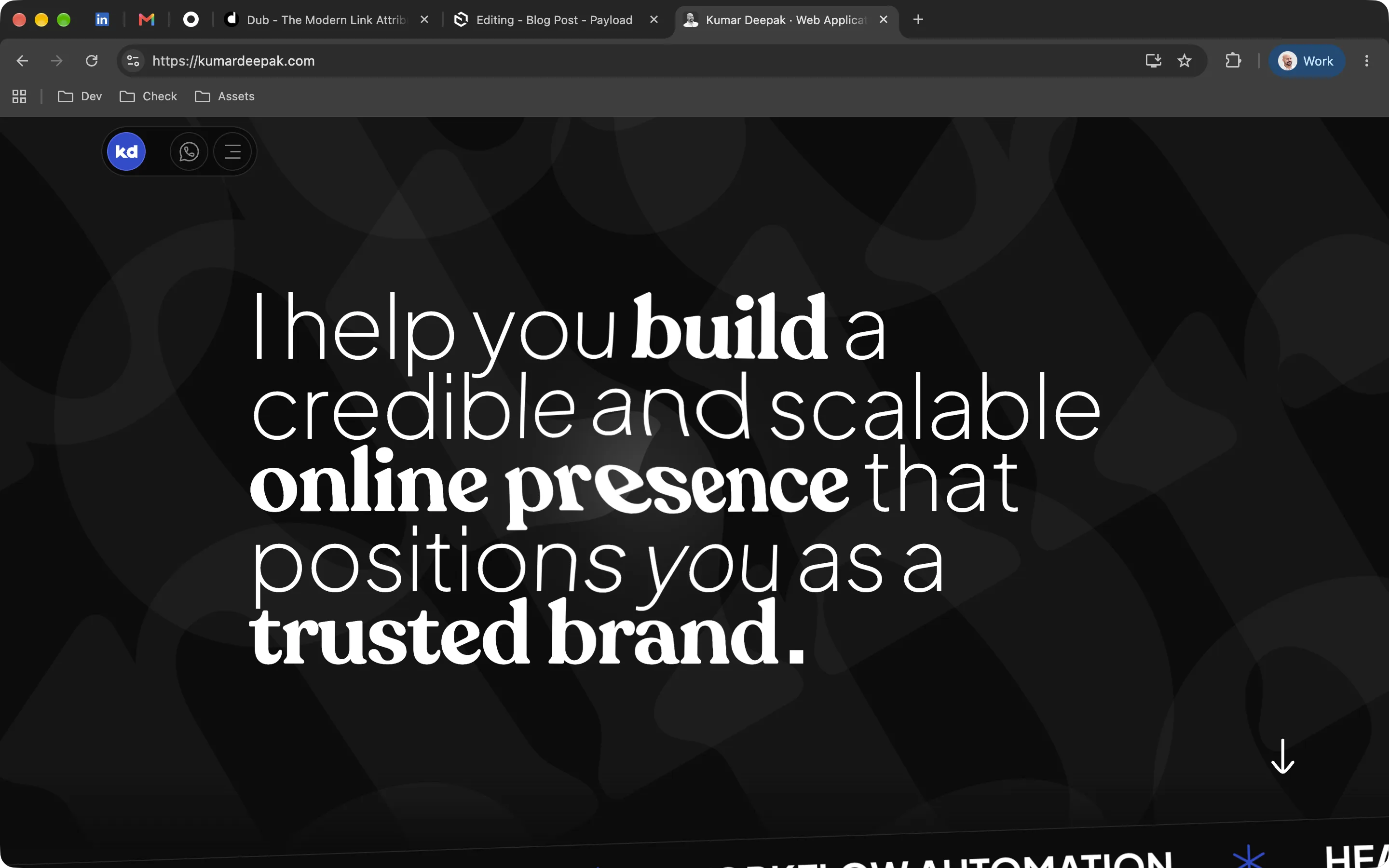
If there is one application that spends more time open on my Mac than anything else, it is Google Chrome.
I know, for some developers, Chrome is the obvious choice, while others would happily spend an entire afternoon explaining why their browser is better. 😂 But after years of building websites and web applications, I still find Chrome the most comfortable browser for my workflow.
I have some pretty good reasons for sticking with it.
First, my Google Workspace account fits naturally into Chrome. My bookmarks, settings, extensions, and other synced browser data stay connected to my Google account. Since I already use Google's ecosystem for work, having that continuity is convenient.
Second, I find Chrome DevTools more intuitive and comfortable. Most browsers offer similar debugging capabilities, but Chrome's Device Mode stands out to me. Switching between device presets, testing responsive layouts, and simulating different screen sizes feels incredibly smooth.
I also appreciate its Network panel, particularly how clearly it presents requests, loading timelines, and what triggered each request. Being able to inspect API responses, troubleshoot loading issues, and simulate slower connections in one place makes debugging easier. Other browsers can do much of this too, but I simply prefer how Chrome puts everything together.
Third, I like Chrome's simple, familiar interface. It feels clean and simple without trying too hard to reinvent how a browser should work. I know where everything is, and my tabs stay exactly where I expect them. YES, Speaking of tabs, I have a confession.
I absolutely hate vertical tabs. 🤪
There, I said it. You can keep your beautifully organized vertical sidebars, futuristic browser layouts, and whatever productivity revolution is happening over there. My tabs belong at the top, horizontally, where they've always been.
And yes, I've experimented with other browsers. I used Firefox Developer Edition for a while, but eventually noticed that I was opening it so rarely that keeping it installed made little sense. So I removed it.
Safari gets its own job
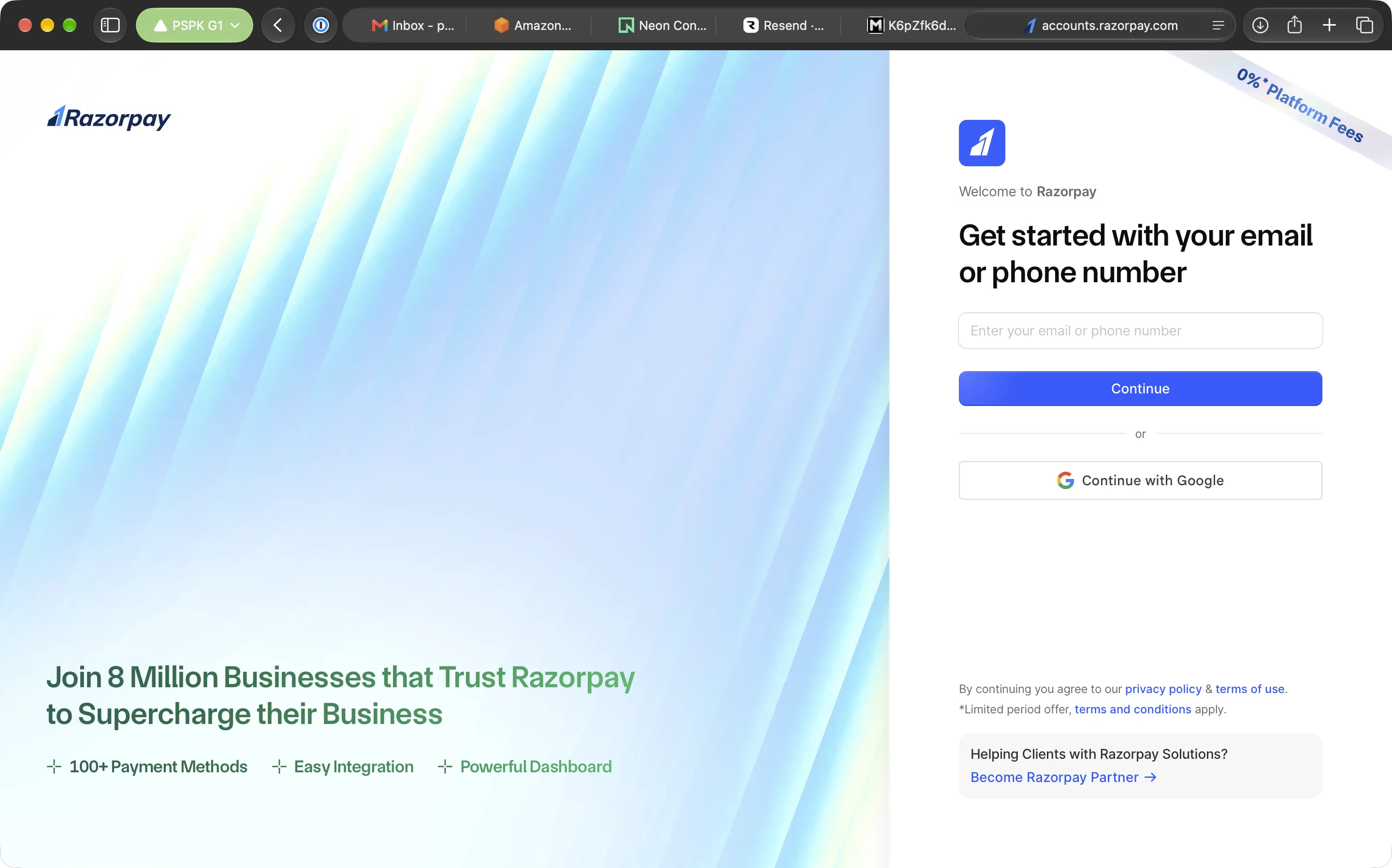
My second most-used browser is actually Safari, but not primarily for development.
I use Safari as a separate home for project-related accounts. Each project can have its own browser profile, where I keep the third-party services, dashboards, and website accounts associated with that project.
For example, a project might involve hosting dashboards, analytics accounts, or other services that I need to access regularly. Keeping those sessions in a dedicated Safari profile means they don't get mixed up with everything else I'm doing in Chrome.
Safari's browser profiles maintain separate cookies, website data, history, and tab groups, which makes this separation genuinely useful.
So my arrangement is pretty simple. Chrome is where I build and debug websites. Safari is where I keep the administrative side of individual projects organized.
Two browsers, two jobs, considerably less account-switching nonsense. ✌️
2. Visual Studio Code
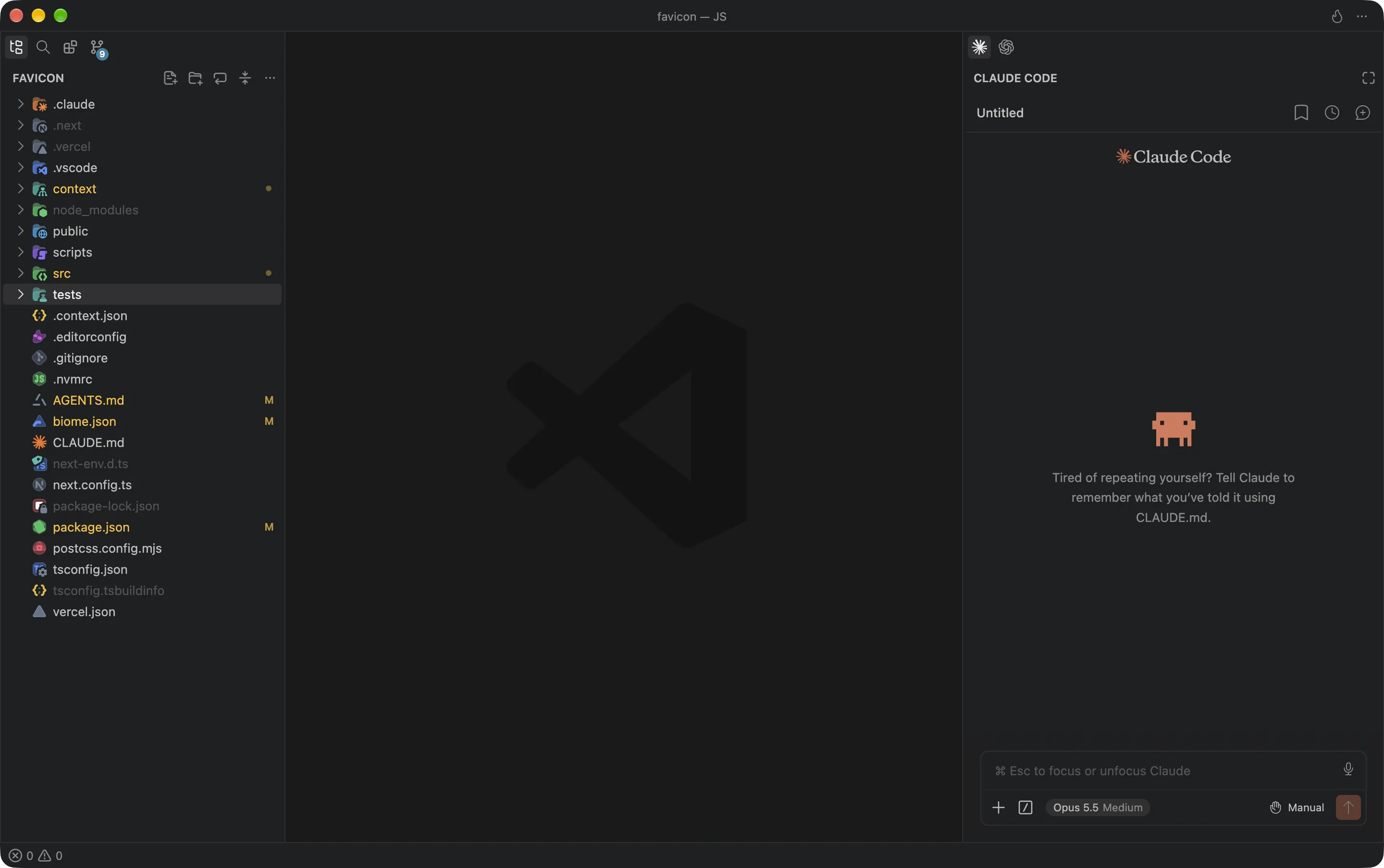
My code editor is Visual Studio Code, better known as VSCode.
And that's pretty much the introduction it needs.
I've tried quite a few alternatives, including Cursor, Google Antigravity, and WebStorm, to name a few. Some are even built on top of VSCode itself, which makes my search for a better VSCode alternative a little ironic. But I gave each one a fair shot, hoping to find something that could genuinely improve my workflow.
Every time, I eventually came back to VSCode.
It has the right balance of simplicity and versatility for me. I can work across different languages, frameworks, and projects, customize the editor through extensions, manage project-specific settings, and keep the interface exactly how I want it.
Before VSCode, my editor of choice was Atom, which I used throughout 2016. Around that time, Microsoft's relatively new VSCode was gaining popularity and had started catching my attention. Curious to see what the excitement was about, I gave it a try in 2017, liked what I found, and decided to make the switch.
Since then, VSCode has been my primary editor.
Yes, modern alternatives have interesting AI capabilities. Yes, some provide different interfaces and development experiences. And yes, I'll probably install another one someday out of curiosity, spend a little time exploring it, and then return to VSCode.
VSCode works great! I know where everything is, and I can concentrate on building applications instead of configuring another application to build applications.
That's enough for me.
3. Warp
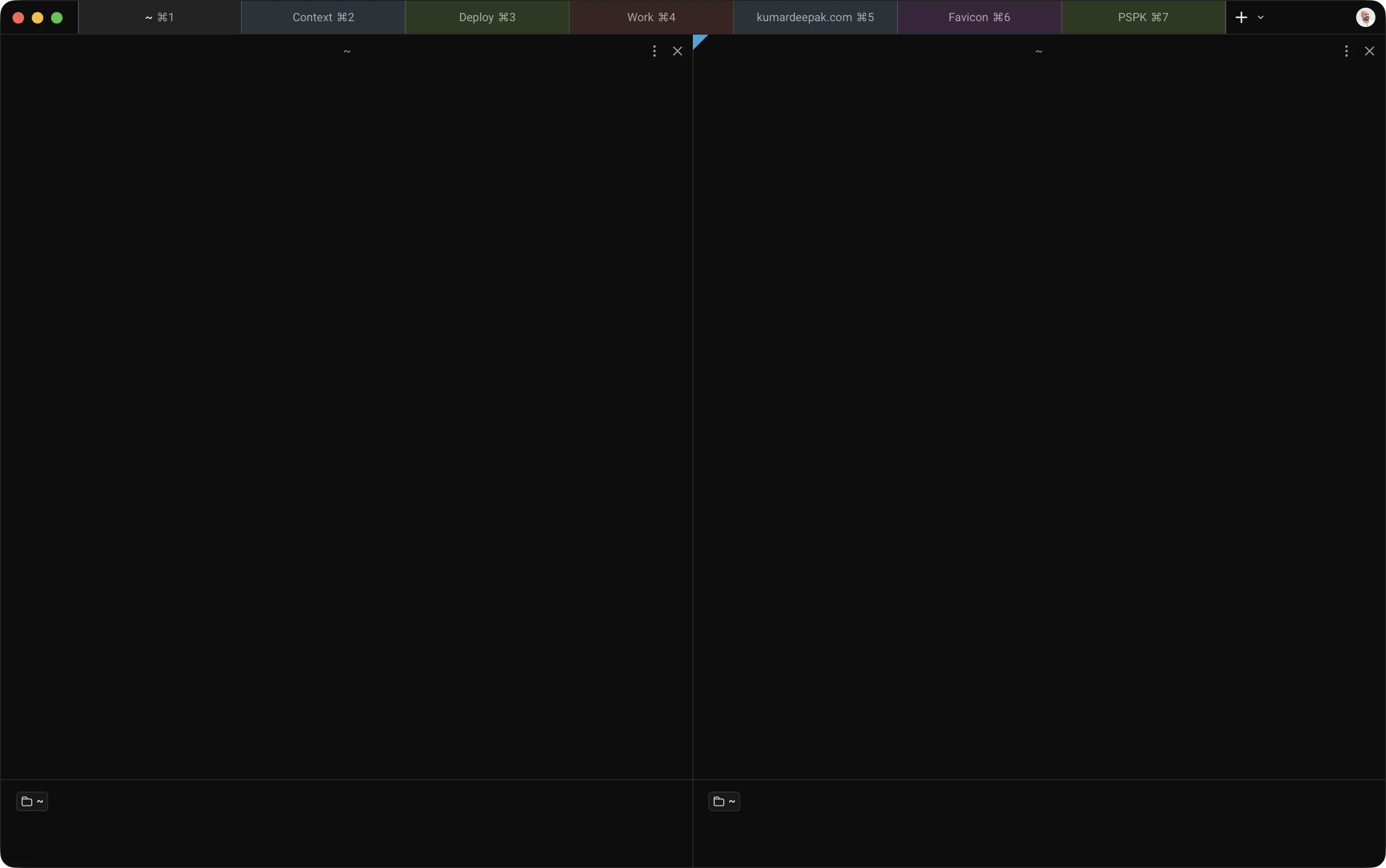
For terminal work, I currently use Warp.
I prefer keeping my code editor and terminal separate.
VSCode is my space for writing and navigating code. Warp is where I run commands, manage development processes, connect to servers through SSH, and handle the usual command-line tasks that come with building and maintaining web applications. Having them in separate applications makes sense to me.
What initially attracted me to Warp was how much it offered without requiring extensive configuration.
I just install it, change the font, give my tabs some color, turn off the AI features, and get straight to work.
Yes, I turned off the AI features in an AI-powered terminal. 😂
My needs are significantly more simple.
Open a terminal. Run a command. Connect to a server. Do the work. Close the terminal. 😍
I also appreciate not having to spend hours assembling a heavily customized terminal environment. Nothing against people who enjoy tweaking their shell, plugins, themes, and configuration files. I just prefer something that looks good and works without becoming another project.
My next terminal might be Rex
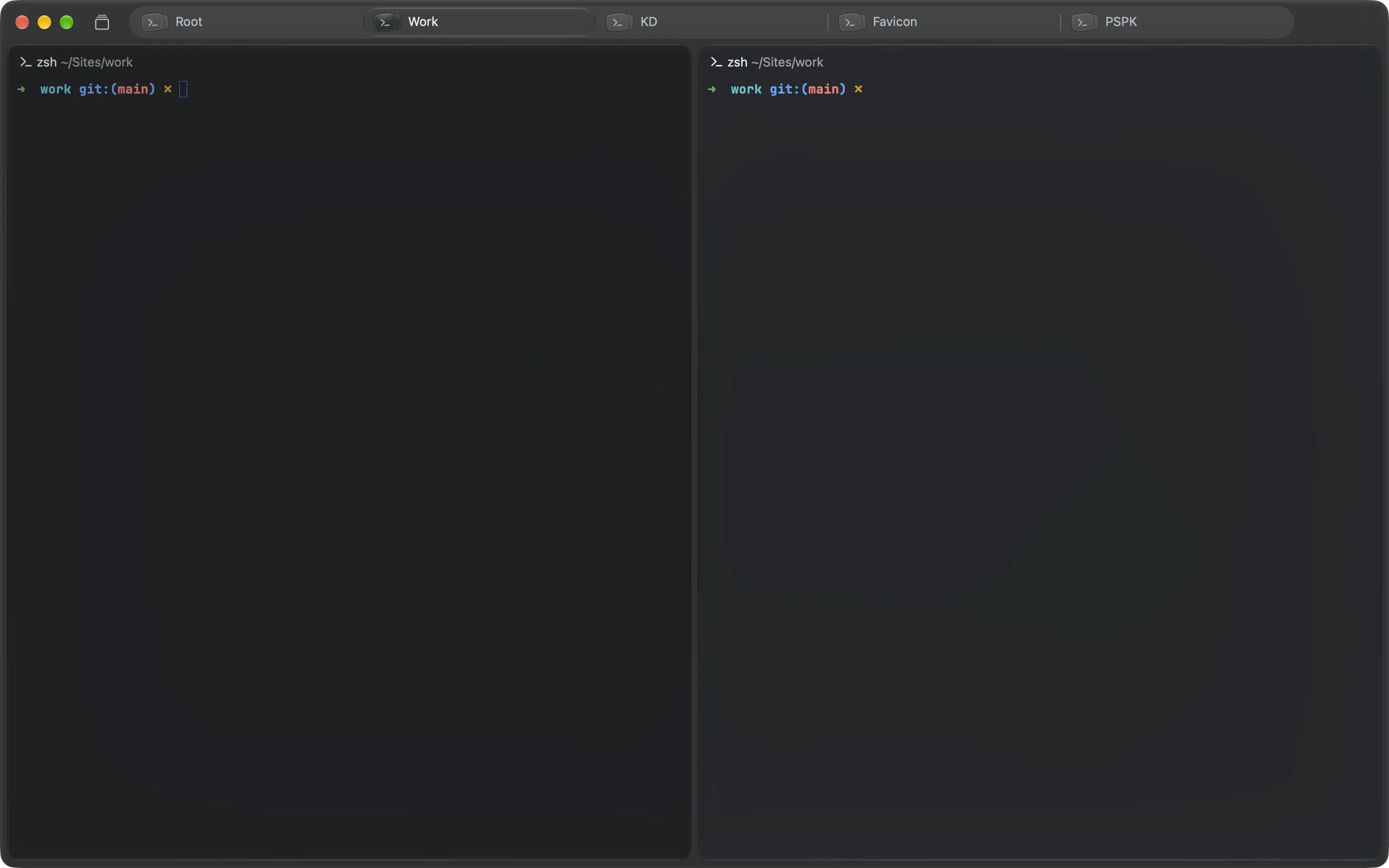
Although Warp is still my daily terminal, I've started feeling that it has become slower and more bloated than I'd like. That's my experience, not a benchmark of its performance on every machine.
Which brings me to Rex by Superlogical.
If you follow developer tooling, you probably know Mitchell Hashimoto, the creator of Ghostty and co-founder of HashiCorp. Mitchell and the team at Superlogical are developing Rex, a terminal experience built around persistent sessions, remote connections, and terminal multiplexing.
I've been interested in it because of the attention being given to the terminal experience itself. Clean interfaces, thoughtful interactions, and software that feels carefully designed are things I appreciate.
I'm genuinely looking forward to trying it and potentially replacing Warp.
So, to the Ghostty fans, don't worry. I'm not completely ignoring that side of the terminal world. I'm just taking a slightly different route through Superlogical. 😅
And to the people who swear by tmux, I respect your dedication. I still haven't properly understood why I personally need it, although I understand the value of persistent terminal sessions.
Maybe Rex will finally make me appreciate terminal multiplexing.
Or maybe I'll continue opening tabs and pretending I'm a very sophisticated developer. 🤪
4. WhatsApp
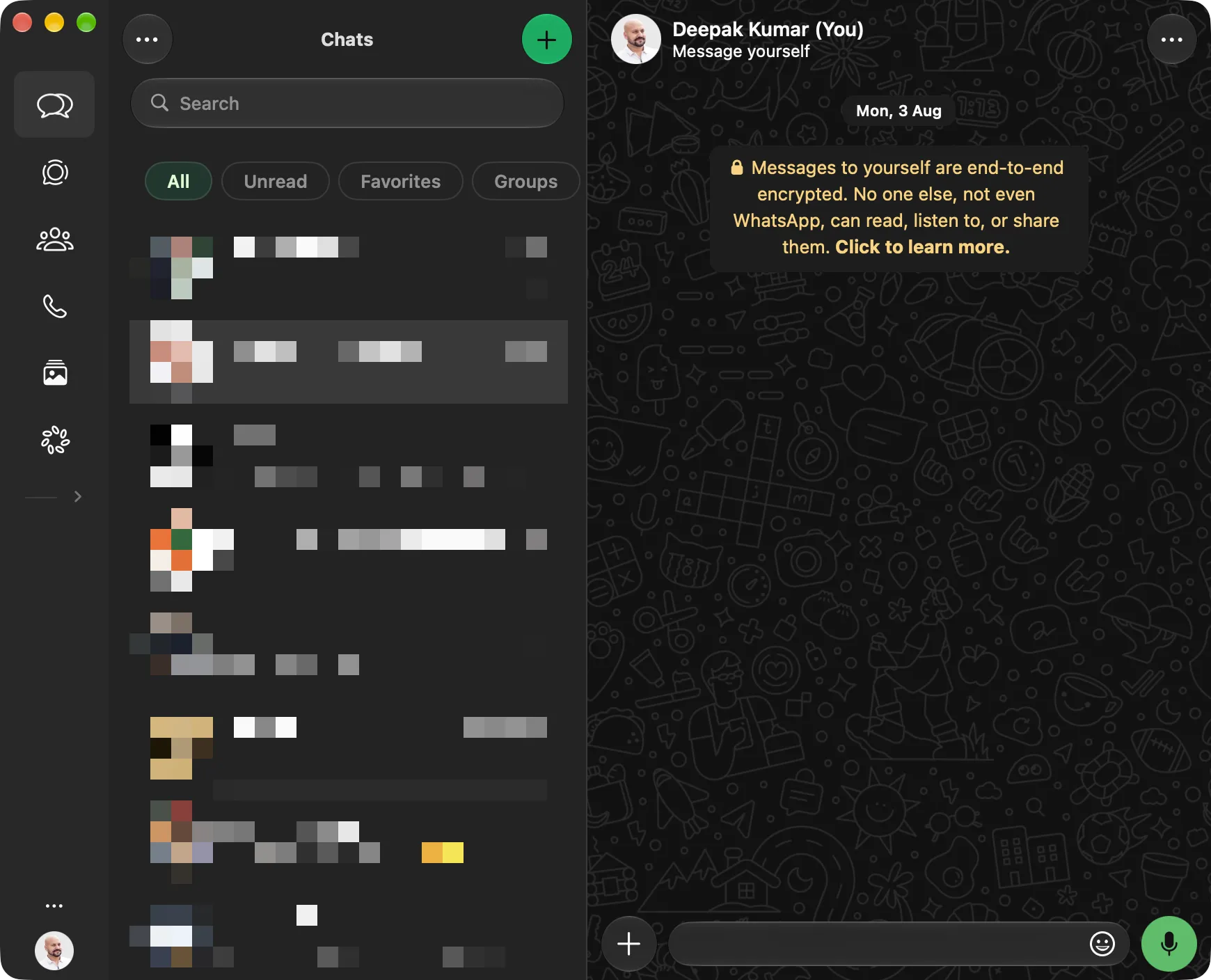
Yes, WhatsApp is on my list of essential desktop applications.
Here's the thing. When I'm working at my Mac, I don't want to keep reaching for my phone every time someone sends a message or calls. My phone could be somewhere nearby, happily enjoying its retirement, and I probably wouldn't notice. With WhatsApp for macOS, I can send and receive messages, make voice or video calls, exchange documents, and stay connected without leaving my desktop.
For someone working independently with clients, communication is a considerable part of the job. Questions come up, information needs to be exchanged, and sometimes a quick conversation is much easier than a long email. WhatsApp makes those interactions convenient. I can respond to clients, share a file, or answer a family message while continuing to work.
The desktop app also feels comfortable in the macOS environment, and I prefer having it available as a dedicated application rather than another browser tab. And between WhatsApp, email, and everything else available on my Mac, I barely need my phone during working hours.
Except for taking pictures. 😅
5. CleanShot X
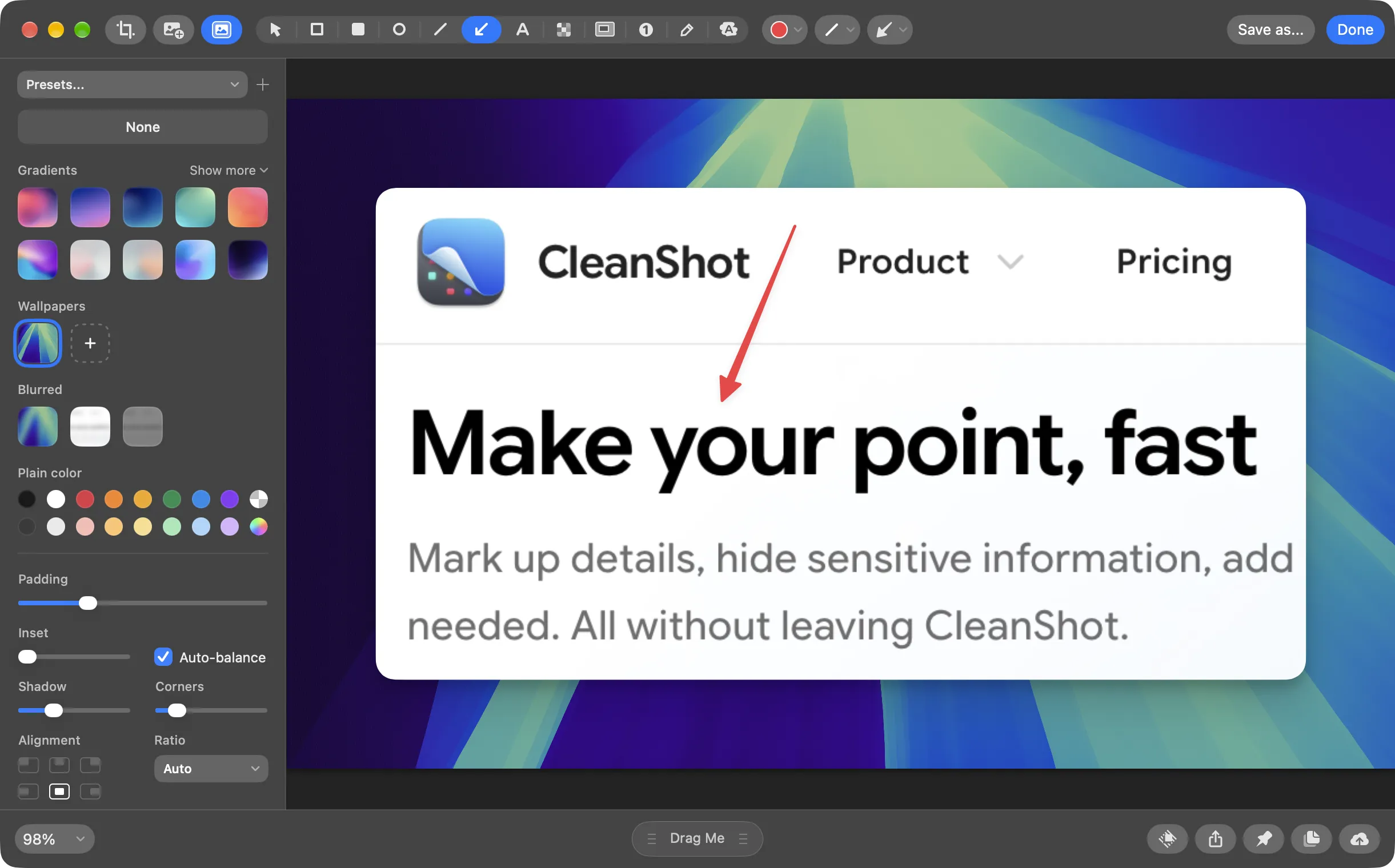
I genuinely cannot imagine my daily workflow without CleanShot.
At its core, CleanShot X is a screenshot and screen-recording application. But describing it as a screenshot tool doesn't really explain why I like it so much. The magic is in what happens after taking the screenshot.
It has a feature called Quick Access Overlay.
Whenever I capture something, a small floating preview appears on my screen. From there, I can copy the image, save it, drag it into another application, or open it for annotation.
I take a screenshot, double-click its floating preview, and the annotation editor opens. I make whatever changes are needed, highlighting, adding an arrow, or cropping an area. Then I save the changes.
And the screenshot remains conveniently accessible through the overlay. No searching through folders, opening another editing application, or wondering where the screenshot disappeared.
This is particularly useful when communicating visual details. Screenshots help me point out a layout issue, explain an interface change, or share something that would otherwise require a needless explanation.
It also offers many other useful features like scrolling captures, screen recordings, pinned screenshots, annotations, and several other closely connected features. What makes it different for me is that these capabilities don't feel like unrelated features added to make the product page longer. They work together in ways that fit actual day-to-day tasks.
If screenshots are a regular part of your workflow, CleanShot is well worth exploring.
And if you decide it's right for you, you can get 25% off through my link.
I don't think I've ever been this enthusiastic about taking pictures of my own screen. 😂
6. Raycast
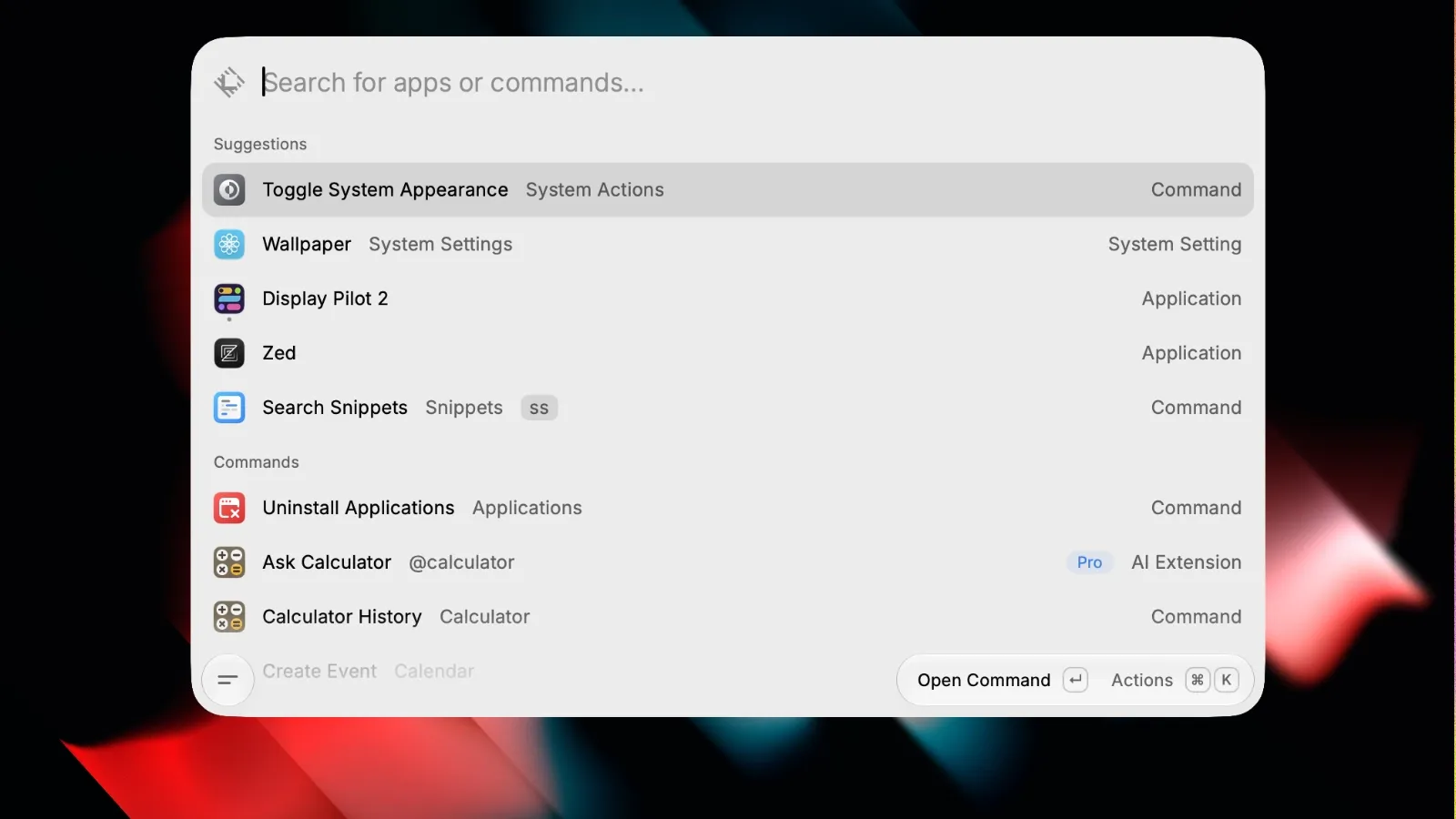
Technically, Raycast should have been the first application on this list.
Why? Because most of the applications I've mentioned wouldn't even get launched without it.
But I wanted to start with software directly involved in development rather than general productivity tools. Although, the more I think about it, the less that distinction makes sense. 😅
Anyway, Raycast is my shortcut for everything and one of the most frequently used utility app.
I installed it sometime around 2021, and since then, macOS Spotlight has essentially been unemployed.
Instead of clicking through the Dock or opening Finder to launch applications, I use Raycast.cmd+space, a few typed characters, and the application is open.
But launching apps is only a small part of what Raycast does.
I use it for quick conversions, text snippets, generating placeholder text, changing appearance settings, managing wallpapers, and plenty of little one-step tasks that would otherwise involve opening another application or navigating through menus.
Raycast also provides extensions, a calculator, clipboard history, and system commands.
The reason I continue using it isn't simply the number of features. It's how accessible they are.
Raycast describes itself as "your shortcut to everything", and in my case, that description is remarkably accurate. I honestly can't remember the last time I deliberately not used it. 😇
7. GitHub Desktop
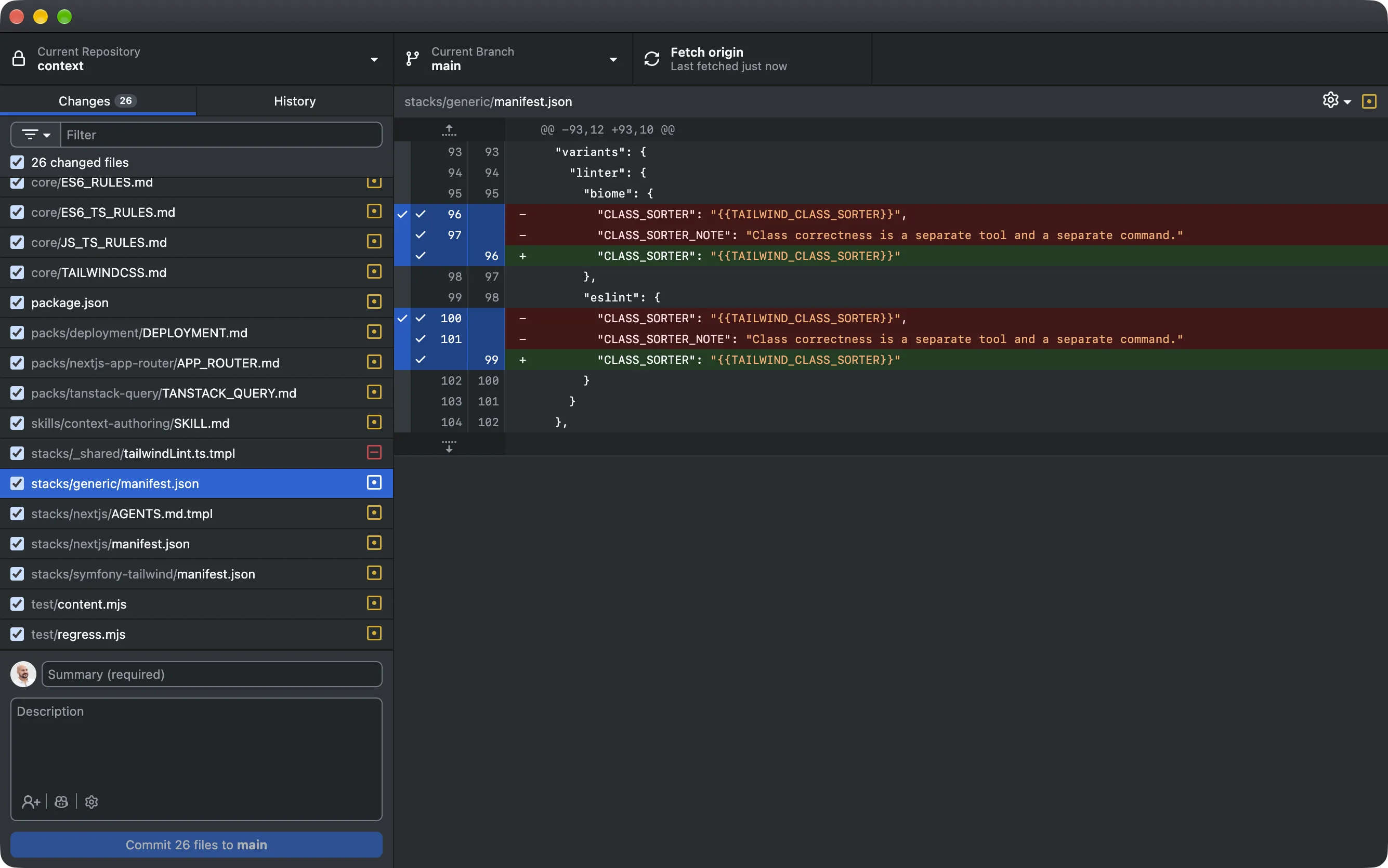
Time for a confession that might disappoint some professional Git enthusiasts.
I barely use Git through the command line anymore. And the reason is GitHub Desktop.
Before installing it, I handled my Git workflow through the terminal. It worked perfectly well, but once I started using GitHub Desktop, I realized that most of my everyday Git operations were easier to manage through its graphical interface. I should explain something about my workflow.
I'm a solo freelance developer. Most of the time, I'm working independently, not coordinating a giant engineering team with complicated branching strategies and an endless parade of pull requests.
My process usually looks something like this.
I write code. Then I write more code. I ask AI to write code. Then my wife write code. 👩💻
Eventually, the changes are ready. Then I commit and push.
That's my Git workflow most days. Please don't revoke my developer license. 😂
GitHub Desktop handles this beautifully. I can inspect changed files, review diffs, select what belongs in a commit, write a message, and push everything without remembering a series of commands.
It also supports managing branches, reviewing history, reverting changes, and other operations when I need them. GitHub Desktop removes friction without removing the functionality I need.
That's why it stays installed.
8. TablePlus
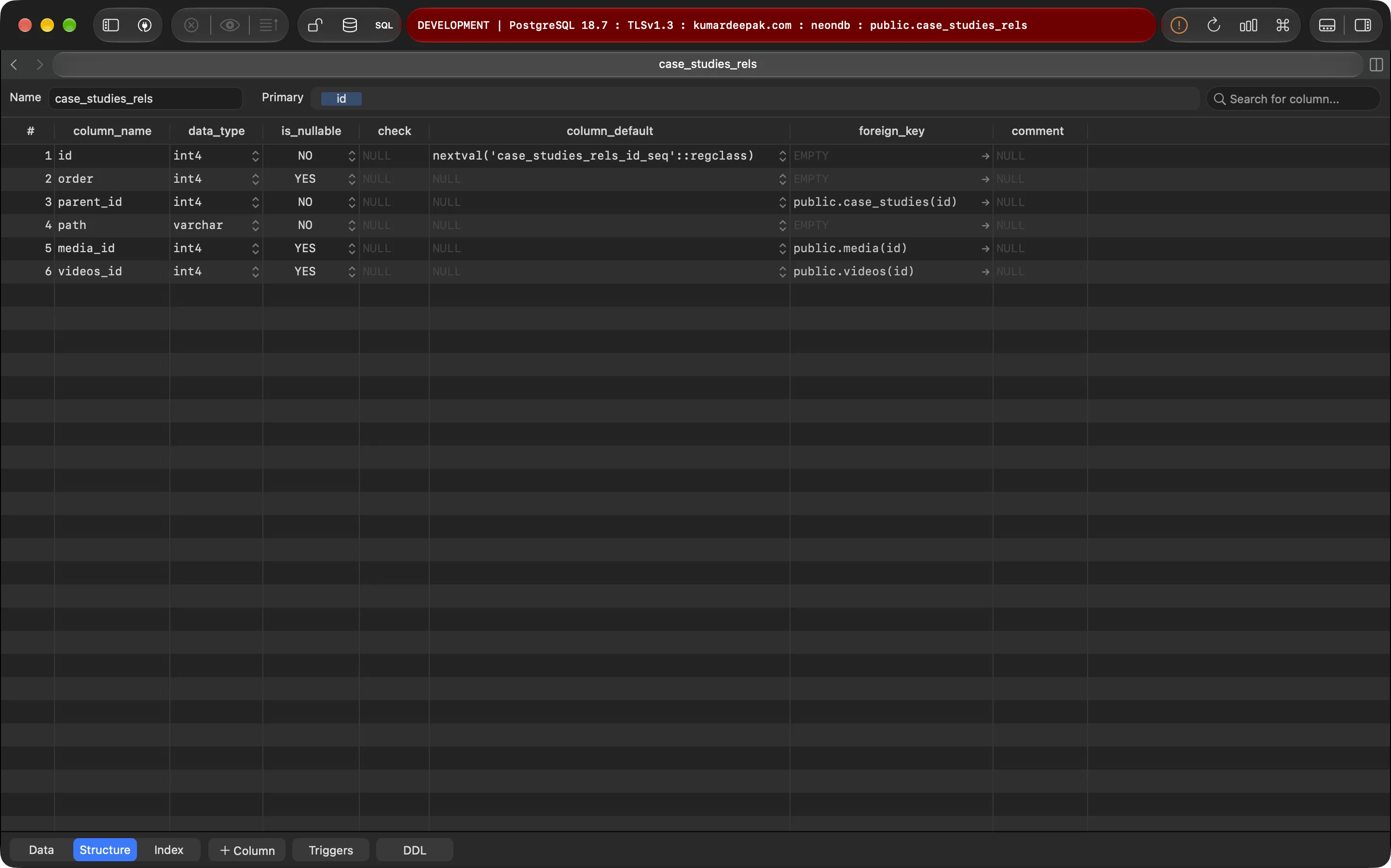
As a full-stack developer, I spend plenty of time working with databases.
And one thing I've never particularly enjoyed is managing them through hosting control panels.
You know the experience. Open cPanel or hPanel, find the database management interface, navigate through tables, wait for something to load, make a small change, and repeat.
It's not always terrible, but it rarely feels like an environment I'd choose for extended database work.
That's why I use TablePlus.
TablePlus is a native database management application that supports databases including MySQL, PostgreSQL, SQLite, Redis, and several others.
Instead of relying on whichever database interface a hosting provider offers, I can connect through a dedicated application with a consistent, well-organized interface.
For everyday database tasks, that makes a noticeable difference.
I can browse tables, inspect records, edit data, examine table structures, and execute SQL queries from the built-in query editor. The way TablePlus presents information is a major part of its appeal. Working with rows, columns, relationships, and database structures feels much more natural in it.
It is one of those apps that makes a necessary part of backend development significantly more comfortable. It doesn't make databases less complicated. It just makes working with them less irritating.
9. Transmit
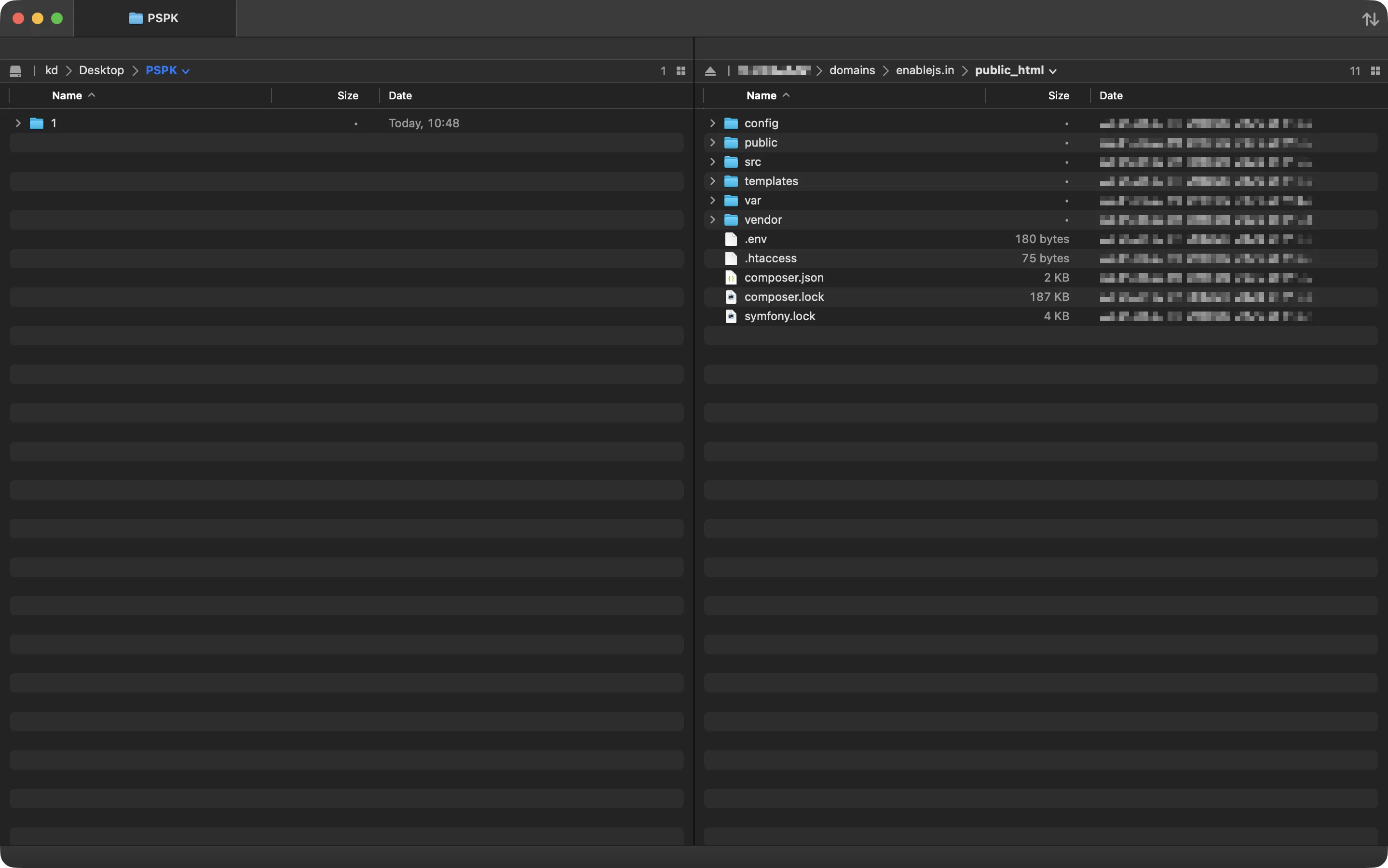
For managing files on remote servers, I use Transmit by Panic.
My reasoning is similar to why I use TablePlus.
I prefer dedicated desktop applications over browser-based hosting file managers when I need a visual interface. Most of the time, I manage servers through SSH. It's efficient, flexible, and generally my preferred way of handling server-related work.
But sometimes command-line access isn't available, or I simply need to browse and transfer files visually.
That's when Transmit comes in. Transmit is a macOS file-transfer application supporting FTP, SFTP, WebDAV, Amazon S3, and several cloud storage services. It lets me browse remote directories, upload and download files, organize folders, and manage transfers through a familiar interface.
I've been using it since 2022, and it has been reliable for what I need.
10. Affinity
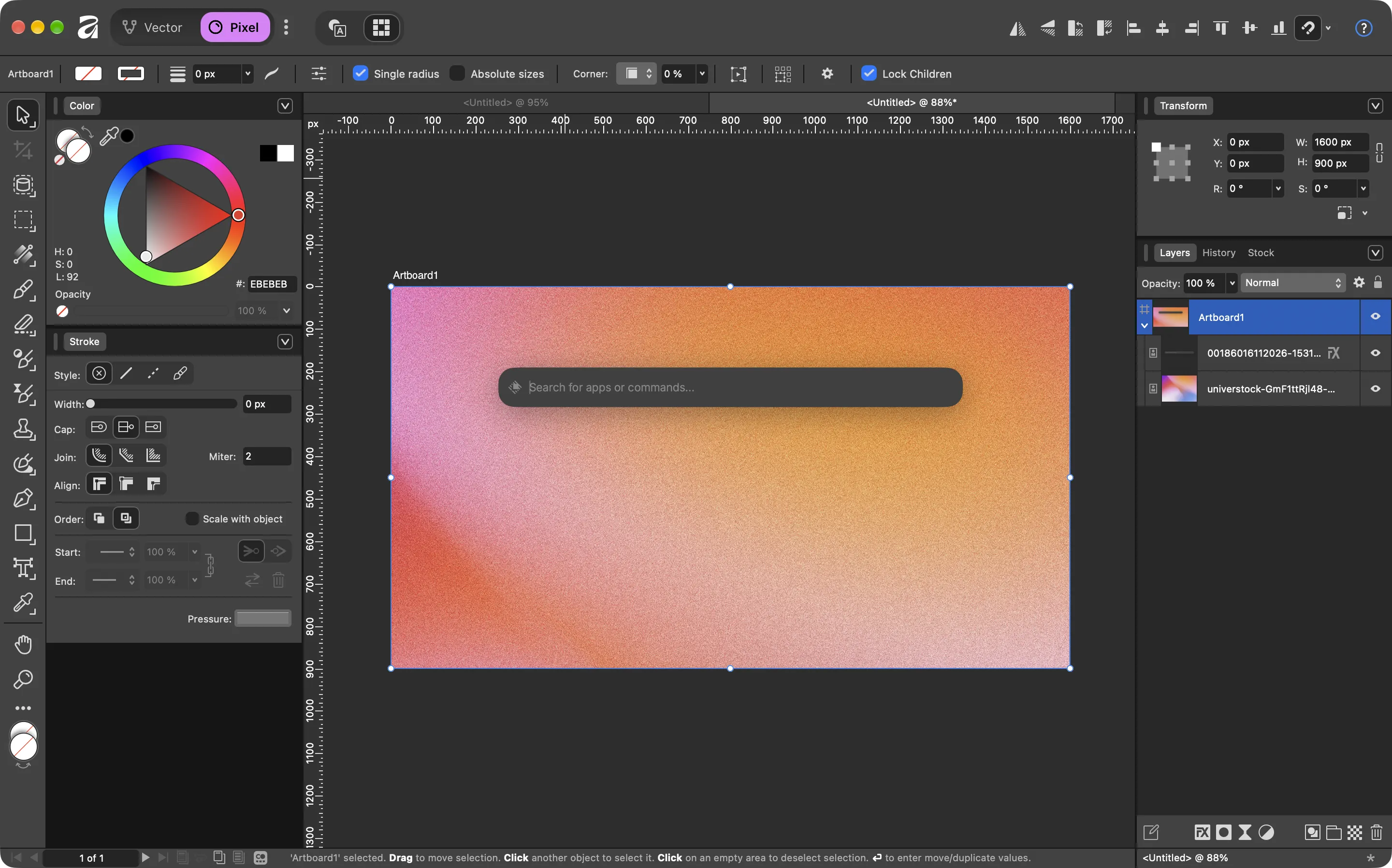
Affinity deserves a special place in my workflow.
I discovered Affinity around 2021, and purchasing it felt like one of the smartest software decisions I'd made. At the time, having access to powerful professional design tools through a one-time purchase was incredibly appealing, ahmm adobe 😋
I was delighted.
Then, in October 2025, Canva introduced the all-new Affinity as a free professional design application.
So apparently, I had been celebrating paying for something that would eventually become free. 🥲
Jokes aside, Affinity remains one of my favorite design applications.
I'm a developer, not a full-time graphic designer. I don't need to explore every advanced tool or master every corner of the application. I need software that helps me handle the visual tasks that naturally come with building websites. Whether it's preparing graphics, editing images, adjusting visual assets, or creating something relatively simple, Affinity gives me a capable workspace without making that difficult.
I probably use only a small fraction of what the application can do, and I'm completely fine with that.
It also played a significant role in my move away from Adobe's creative software. Once I found an alternative that handled my needs comfortably, I had little reason to go back.
That doesn't mean Adobe's tools are bad or that everyone should abandon them. It simply means Affinity fits the kind of work I do. And now that the core application is free, it's even easier to recommend.
Professional designer or occasional designer-by-necessity, Affinity is well worth exploring.
11. Figma
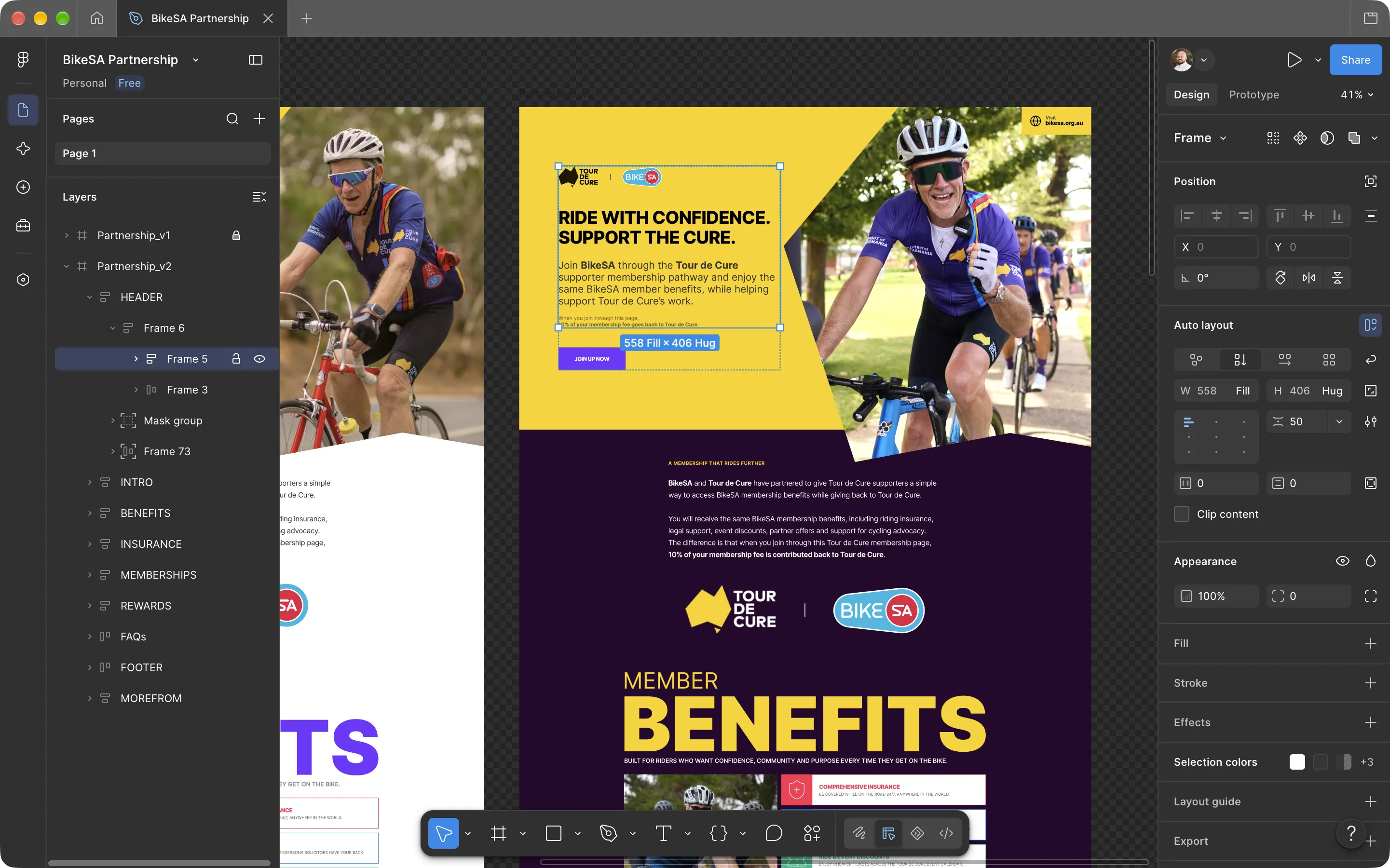
In my workflow, Figma's primary purpose is planning and presenting website interfaces before development begins. I guess that is exactly what it is ment for 🤣
I usually start with a frame, add some basic structure, and slowly turn those rectangles into an actual design. Then come the details. Typography, spacing, colors, layout decisions, visual hierarchy, responsive considerations, and all the little things that determine whether an interface feels coherent.
Designing a complete website takes time, particularly when the result needs to communicate an idea clearly enough for a client to review and approve. But I understand why that process matters.
A design gives the client something tangible to evaluate before the development work begins. It also helps establish visual direction and clarify expectations while changes are still relatively easy to make.
And although I enjoy coding more than spending hours arranging interface elements, I genuinely enjoy the creative side of building websites. Especially when the client approves the design.
That particular notification is considerably more satisfying than a successful build command. 😍
Figma is probably one of the least frequently opened applications in this list, but when I need it, it's essential. It also serves a different purpose from Affinity. I turn to Affinity for graphics and image-related work, while Figma is where I design interfaces and think how different parts of a website fit together.
Two design applications, two different responsibilities.
And occasionally, a lot of rectangles.
FUUUNNNN! mentions 🎉
The main applications above are the ones that play the biggest roles in my working day. But there are a few smaller apps that deserve recognition too. They might not be responsible for building an entire web application, but they make my working experience a little more enjoyable and fun. 🤩
Codenotch
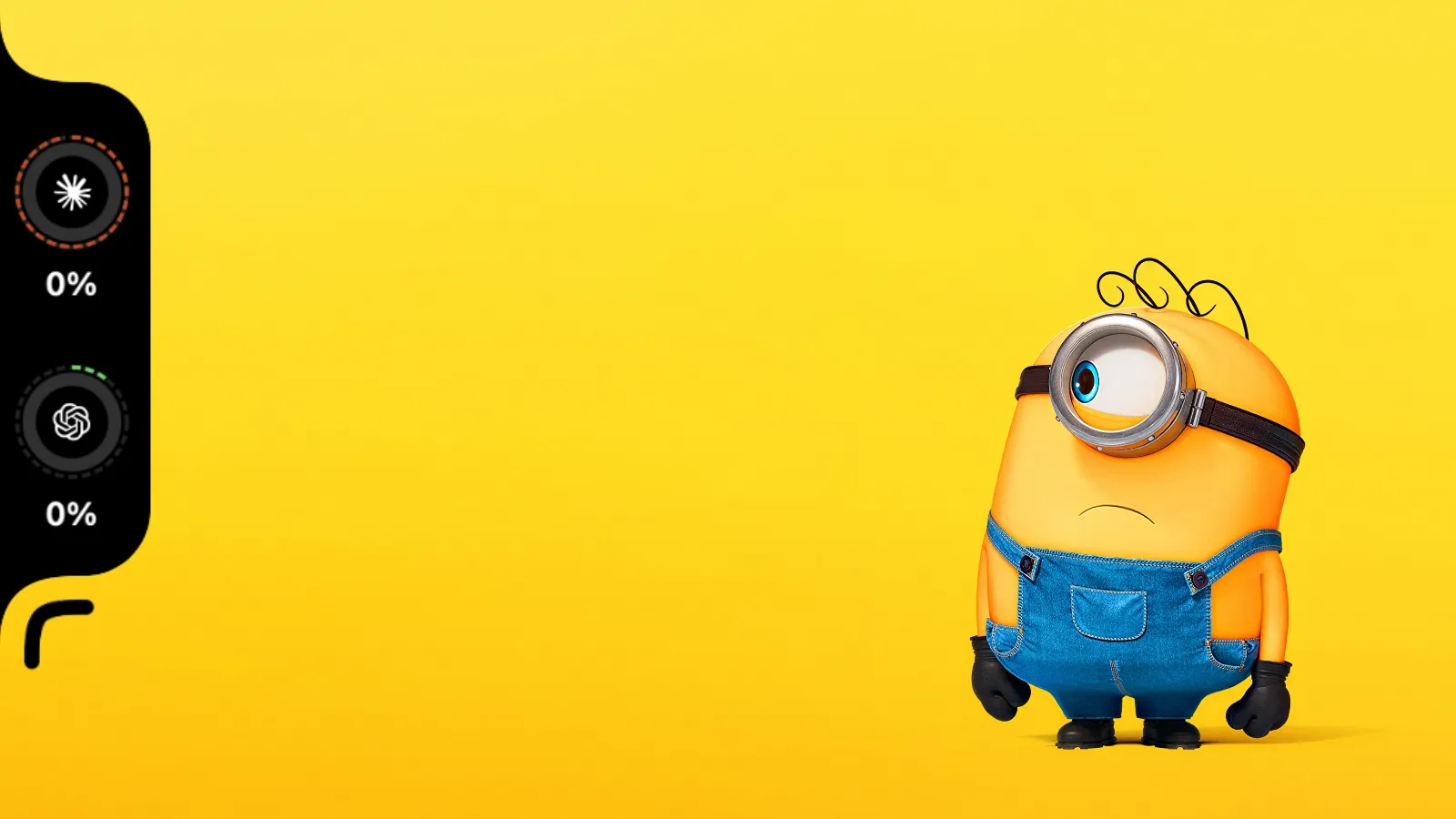
Codenotch is a macOS utility that displays coding-tool usage limits along the edge of your screen.
It supports tools such as Claude Code, Codex, Cursor, Antigravity and many more, making their usage information easier to keep an eye on without constantly opening separate interfaces or running slash commands just to check the usage. A rather appropriate utility for a time when developers have started monitoring AI usage limits almost as carefully as their actual code. 😂
Klack
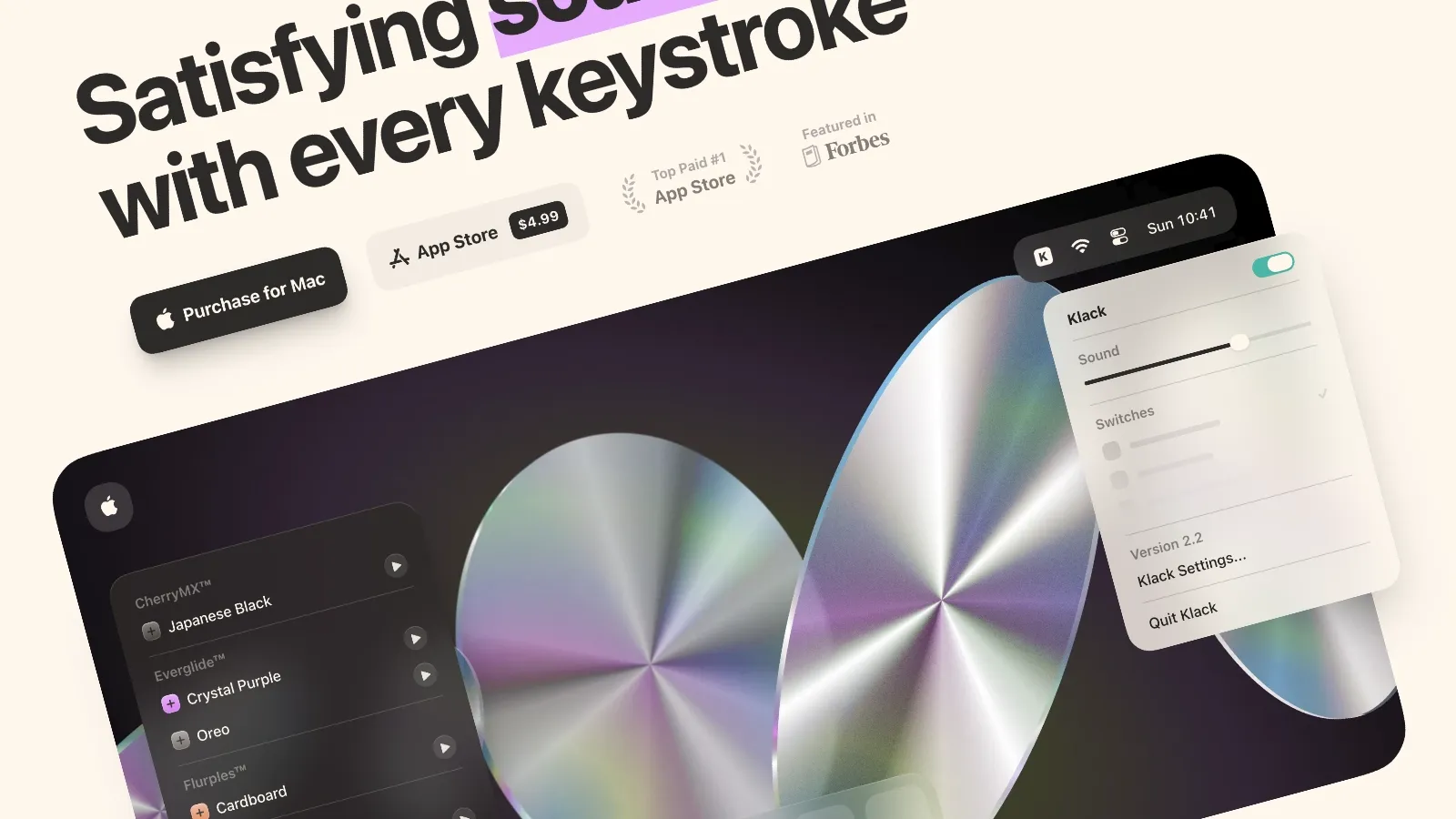
Klack adds satisfying mechanical-keyboard sound effects while you type.
That's pretty much the idea, and I appreciate the simplicity.
You can choose different switch sounds and customize the typing feedback. Does it improve code quality? No. Does it make typing feel a little more entertaining? Absolutely. Sometimes software doesn't need to solve a major engineering problem. Sometimes it just needs to go klack klick klack. 😍
Tot
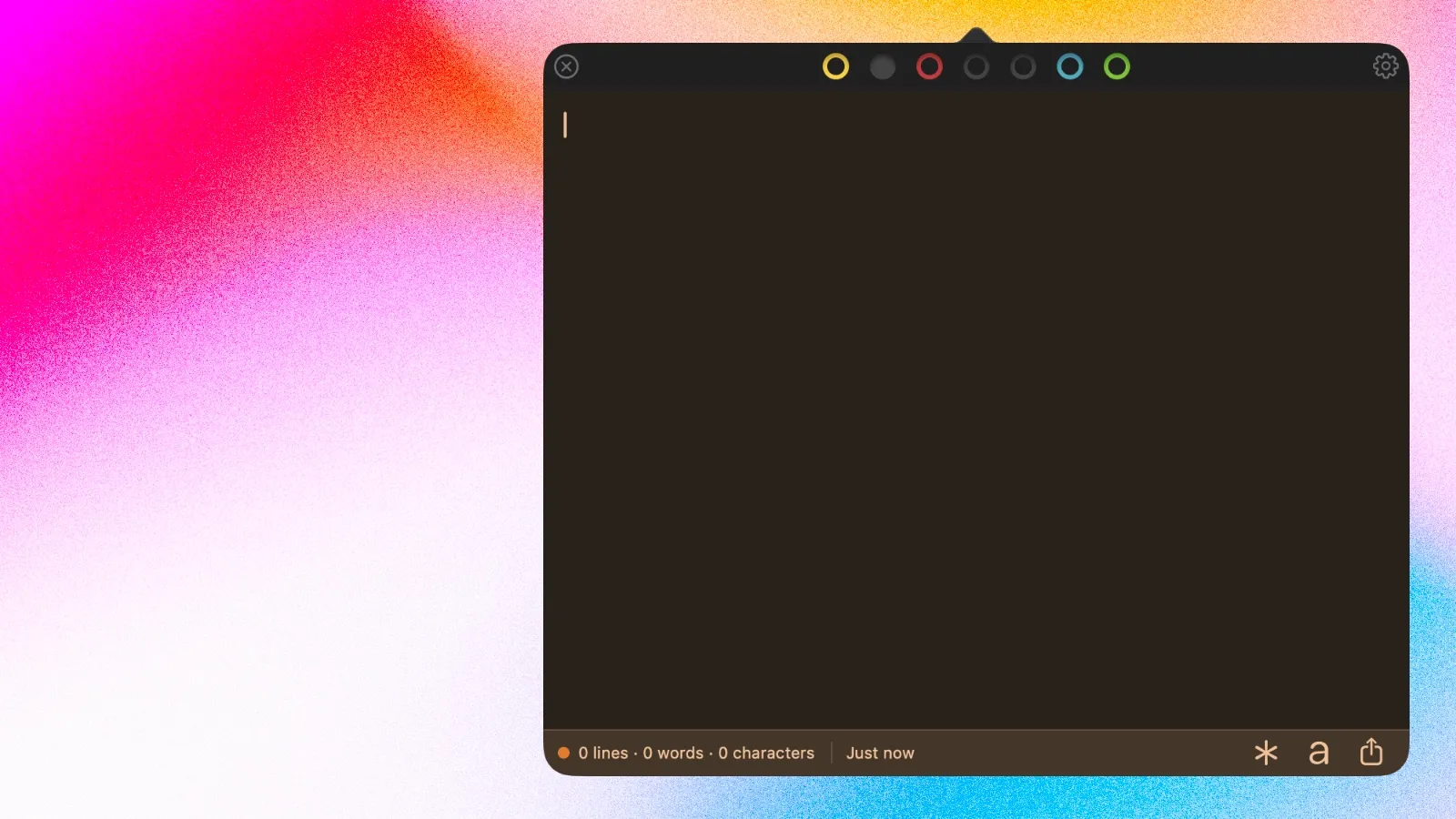
Tot is a small, lightweight text companion for macOS.
It's useful for collecting temporary notes, ideas, snippets, and bits of text without opening a full-featured note-taking application. It live on the menu bar of my macOS and is one-click away to access.
I like the idea of having a simple scratchpad available for those moments when something needs to be written down but doesn't deserve an entire document.
Dropover
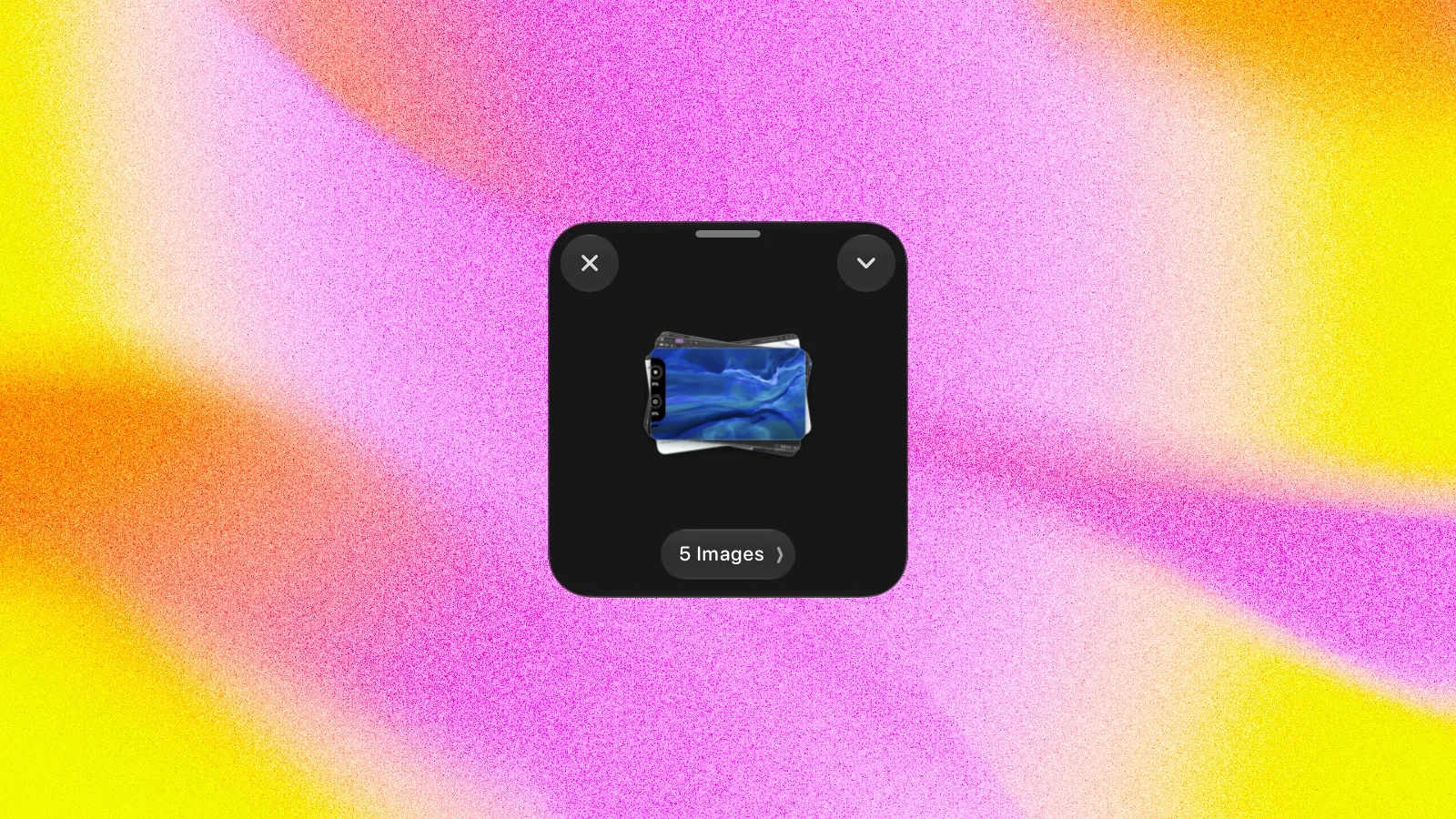
Dropover makes dragging and dropping files around macOS much more convenient.
Its main feature is a floating shelf where you can temporarily collect files, images, links, and other content before moving them somewhere else. Instead of repeatedly switching between windows while carrying files from one location to another, you can gather them in one place and complete the transfer easily.
Spotify
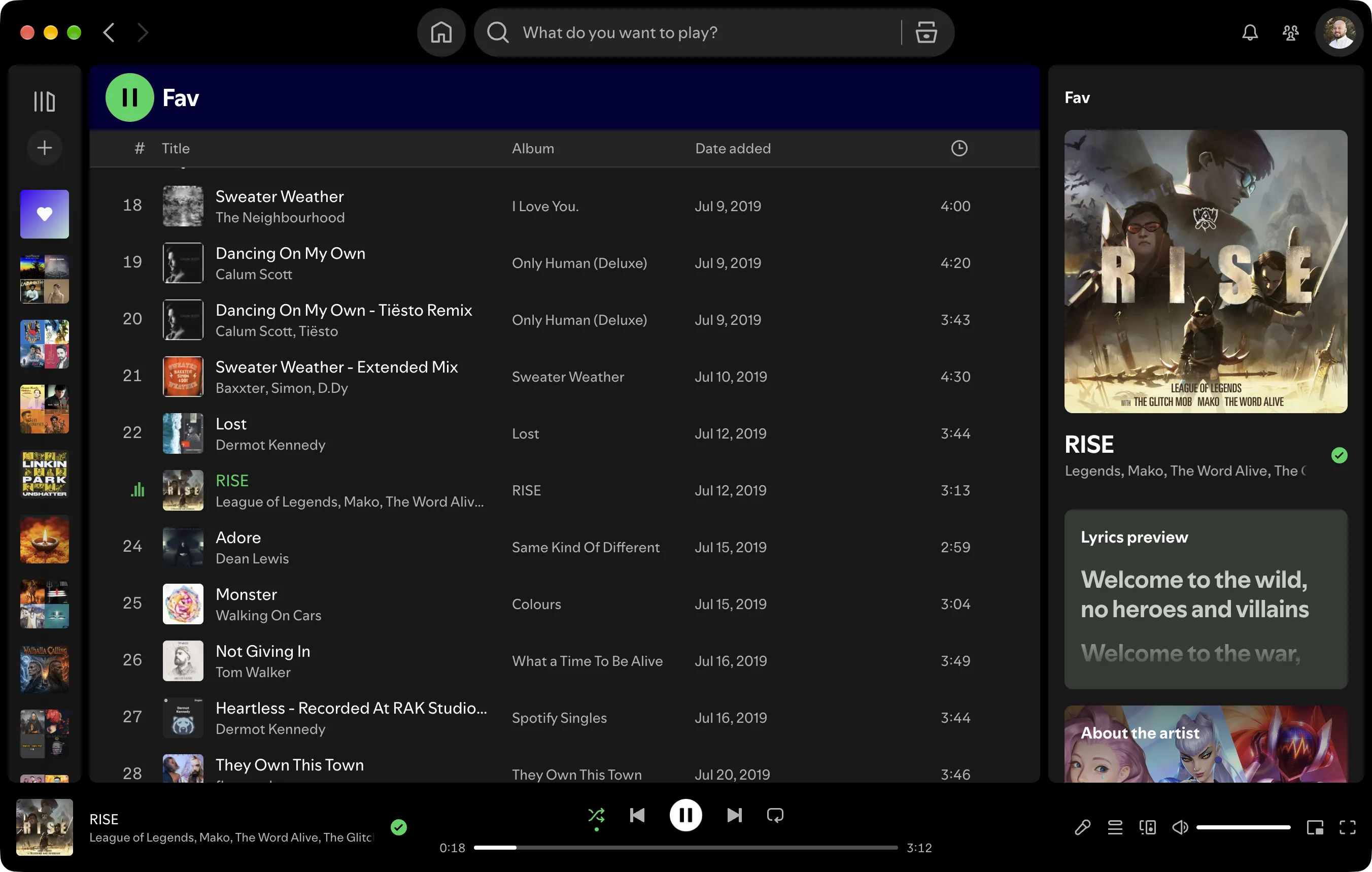
While writing code, debugging layouts, managing databases, answering clients, and occasionally arguing with a terminal still leaves room for Spotify. It doesn't need a technical explanation. It's simply part of the software environment I enjoy having around while working.
What makes an app worth keeping in my workflow?
Looking at this list, there's a fairly consistent pattern in the software I choose.
I tend to prefer applications that are easy to understand, pleasant to use, and flexible enough to handle my actual requirements without demanding unnecessary attention.
I don't necessarily want the application with the longest feature list. I want the one that makes a particular task feel effortless. That is why i am hesitating to try Vorssaint the Swiss Army knife 🎃
Chrome gives me a comfortable development browser. VSCode gives me a familiar coding environment. Warp keeps terminal work separate, GitHub Desktop simplifies my everyday Git operations, and TablePlus and Transmit make database, remote data and file management more manageable.
Affinity and Figma handle the visual side of my projects when needed.
None of this means these are objectively the best applications for every developer. Someone working in a large engineering team, using a different operating system, or following a completely different development process might have an equally good setup built around entirely different tools.
These are simply the applications that have earned their place in my daily workflow through actual use.
This list is not finished (and probably never will be)
This article is a featured on my blog, and unlike most of my articles, this one will continue to evolve.
Whenever I discover a new app that earns a permanent spot in my workflow, switch to a better alternative, or finally say goodbye to something I've been using for years, I'll update this post to reflect my actual setup. So, if you return in a few months and notice a new application on the list, or find that an old favorite has mysteriously disappeared, you'll know something changed in my workflow.
Who knows? Maybe Warp will become Rex, maybe another code editor will finally convince me to leave VSCode, or maybe I'll wake up one morning and start loving vertical tabs. 🤪
The point is, this will always be a living list of the apps, tools and softwares I genuinely use, in my day-to-day setup, not a collection of trendy apps I installed for five minutes just to write about them.